GenLive Studio template
Virtual try-on: see any outfit on any photo
Add a photo of a person and a photo of a garment, and GenLive Studio dresses them in it with realistic fit, folds, and shadows. Their face, pose, hair, and background stay the same. No prompt to write.
Runs in your browser. Free to try, no account needed.
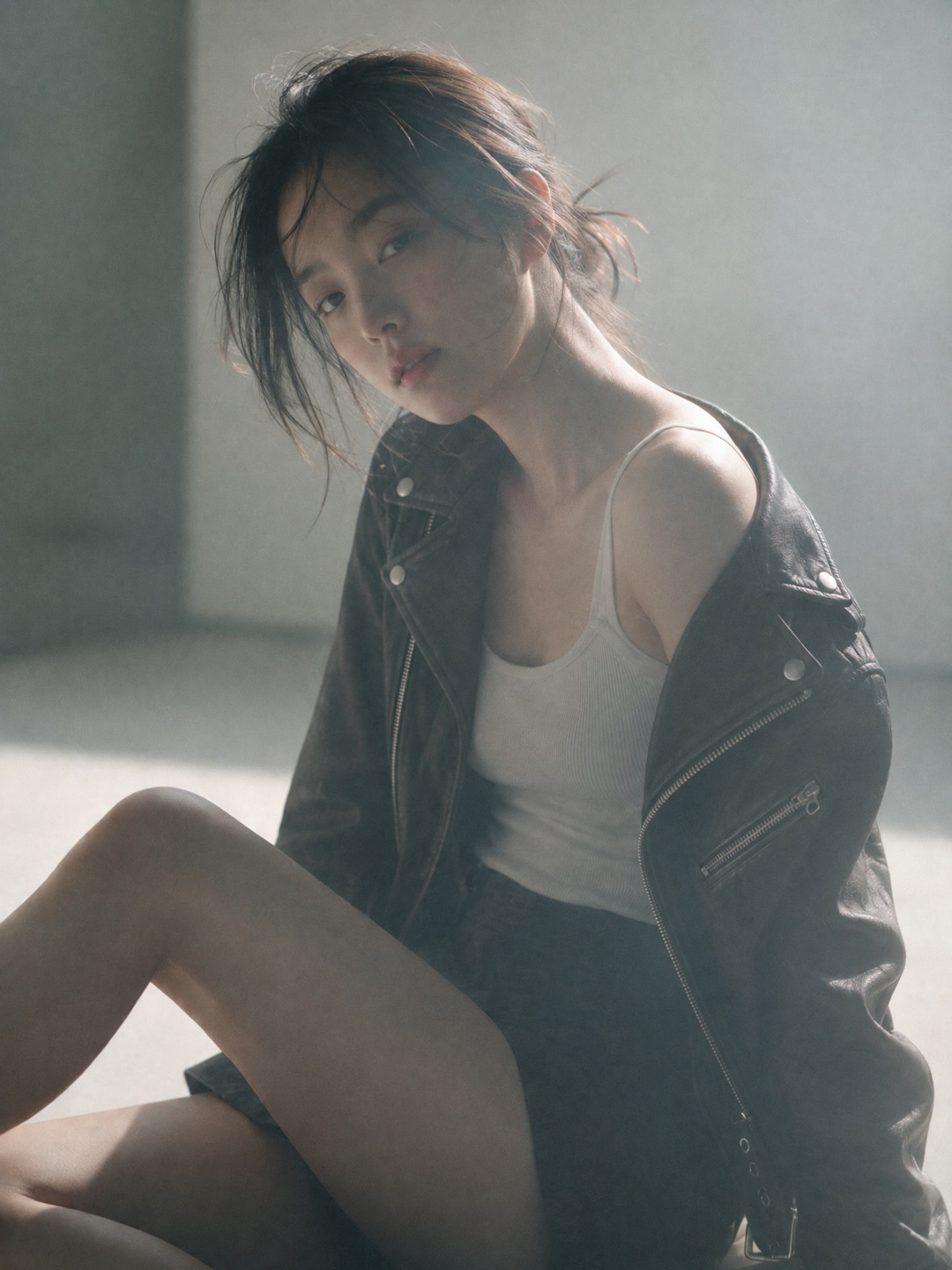
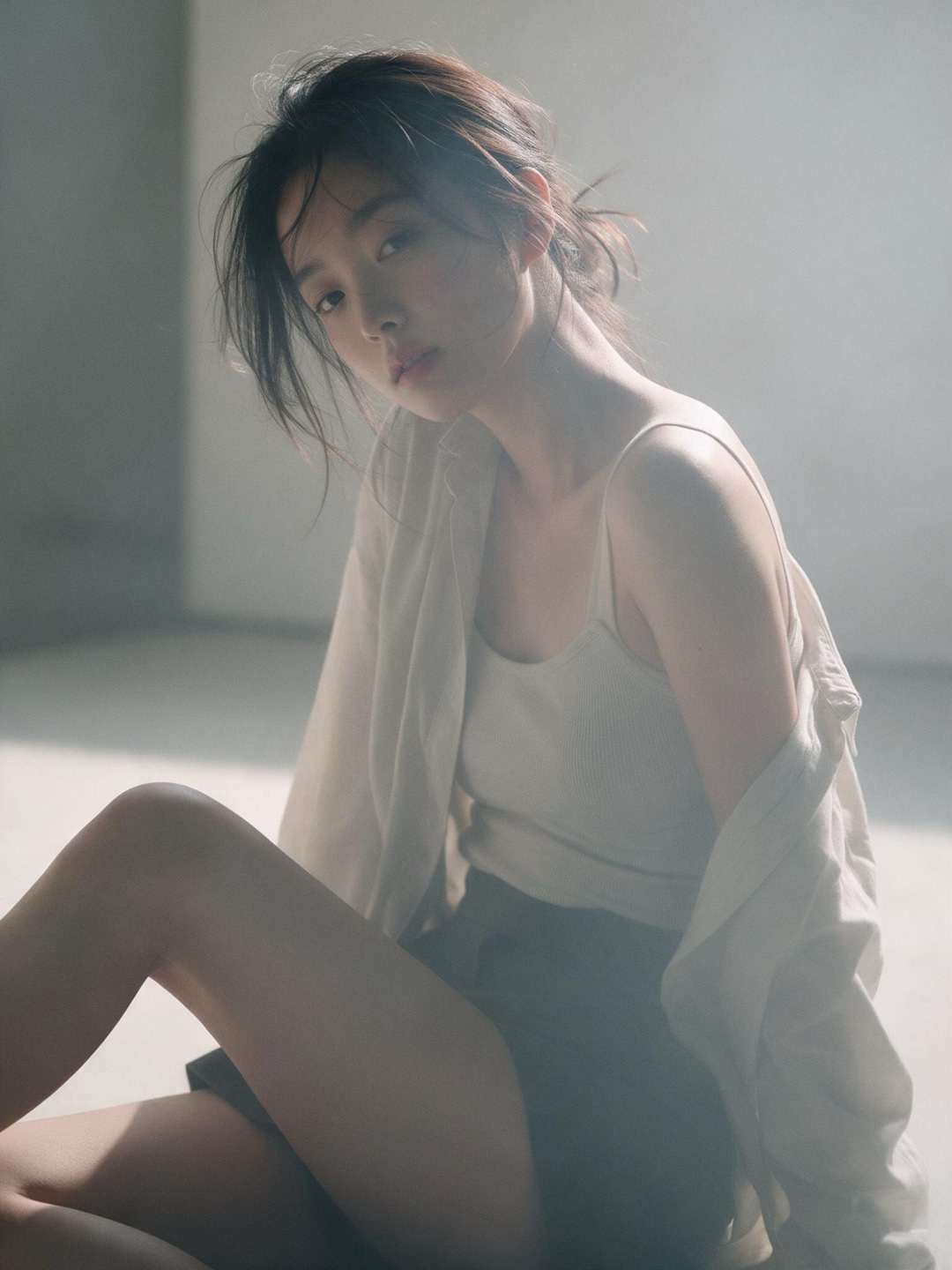
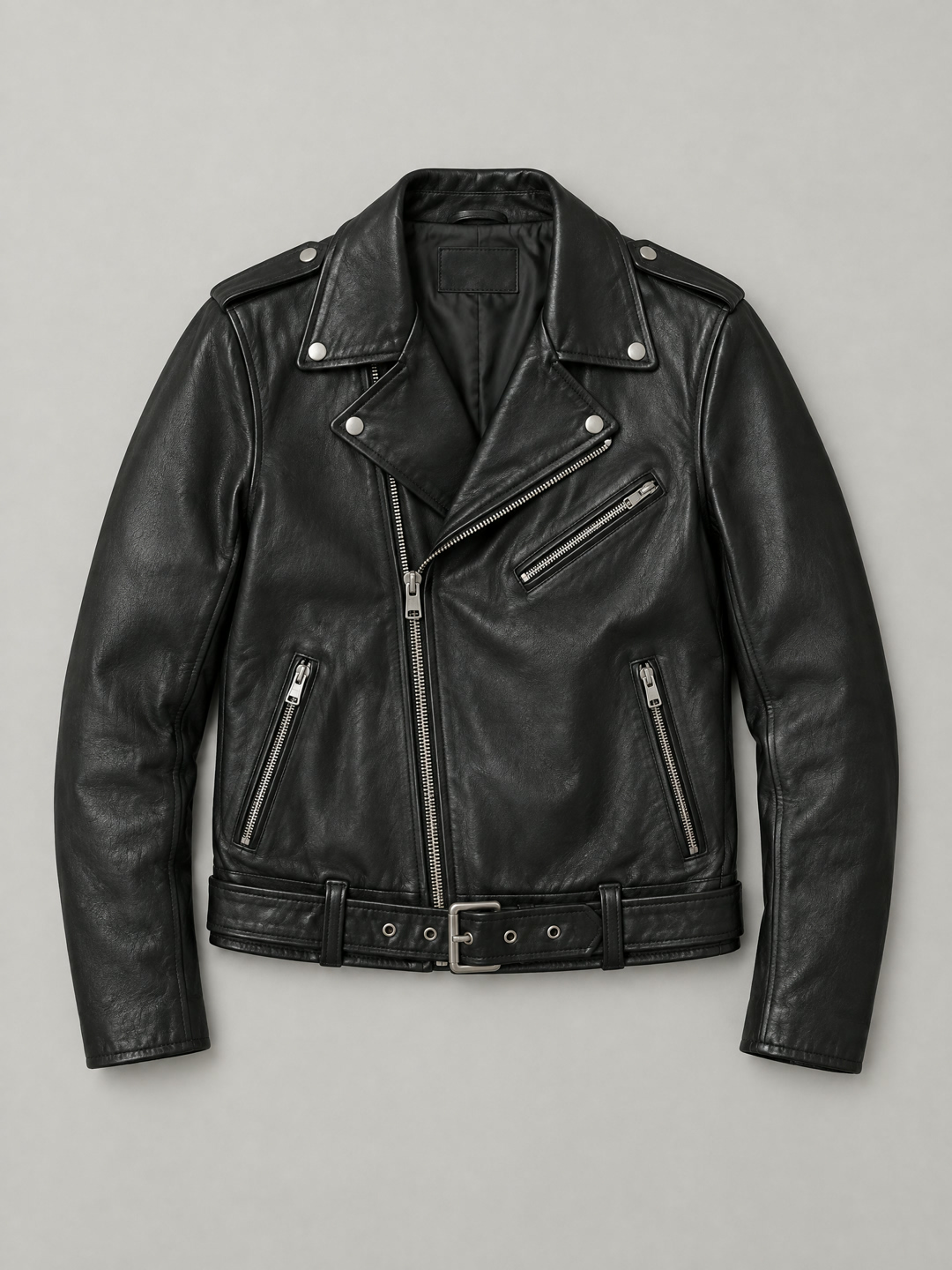
you type
Nothing. Two photos are all it needs.
about it
Outfit try-on is a two-photo template. The first photo is the person, the second is the clothing: a product photo, a flat lay, or a shot of someone else wearing it. Studio asks the model to keep everything about the person and the scene unchanged and to fit only the garment, so you can compare jackets, dresses, or shirts on the same photo without a fitting room.
How virtual try-on works
Add the person
A full or half-body photo where the clothes are visible.
Add the outfit
A product shot, flat lay, or photo of someone wearing it.
Generate
Studio fits the garment and keeps everything else.
Great for
Shopping decisions
See a jacket on yourself before you order it.
Fashion and resale listings
Show a flat-lay item worn by a model.
Styling ideas
Compare several outfits on the same photo.
Questions
More templates to try
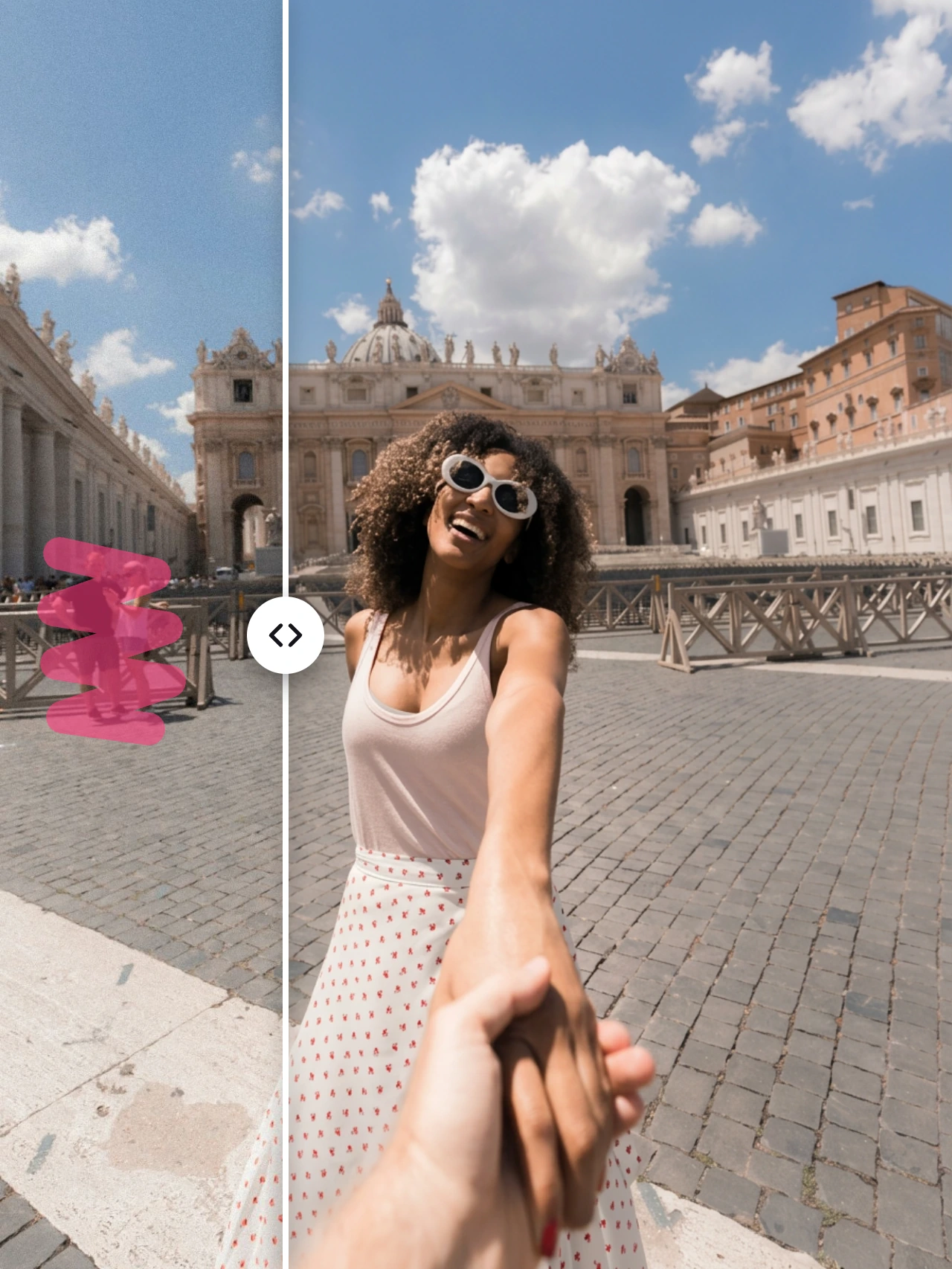
Clean up
Paint over distractions and they disappear.
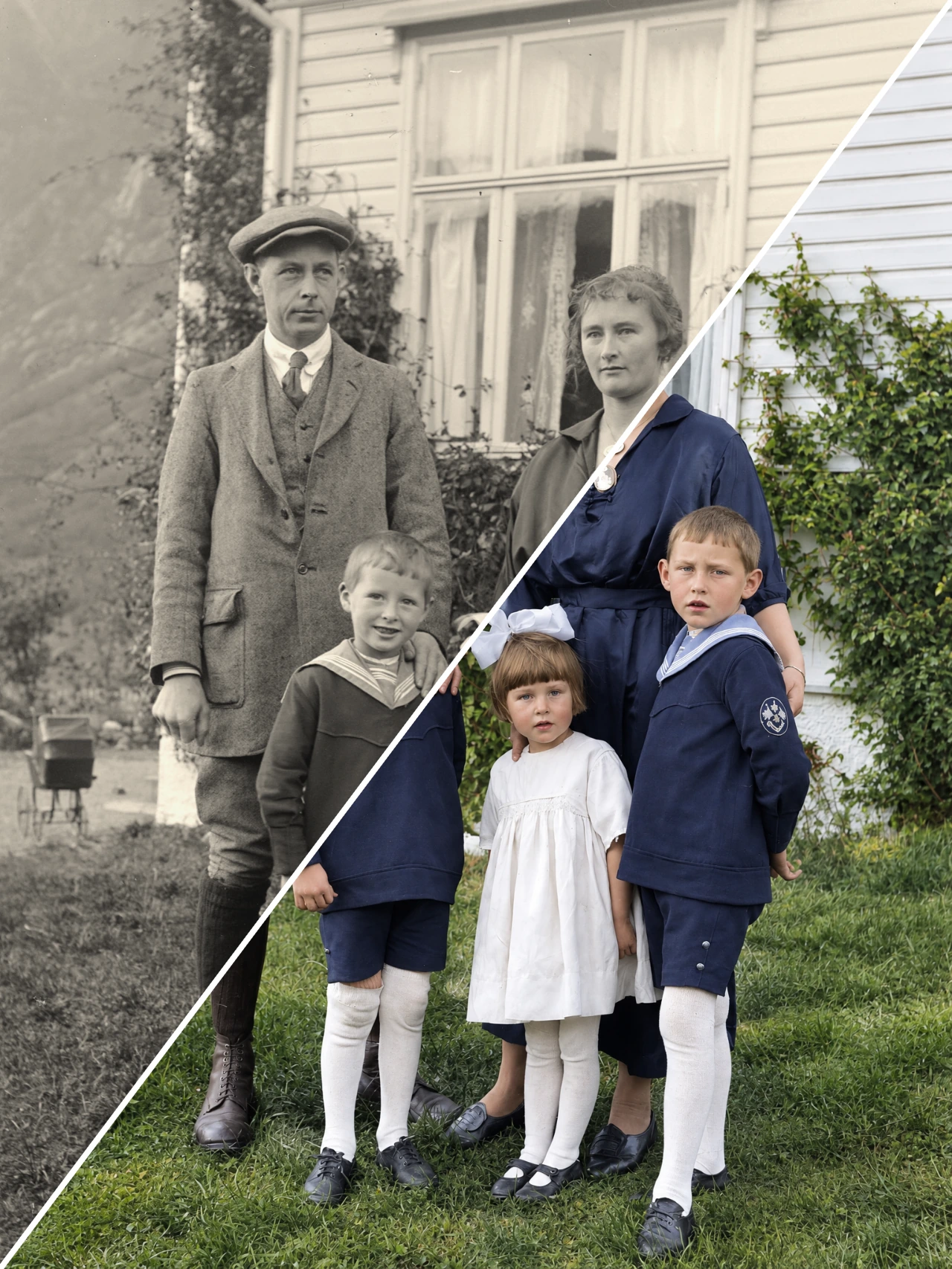
Restore old photo
Fix scratches and fading, and add natural color.
- Video
Animate photo
Bring a still photo to life as a short video.
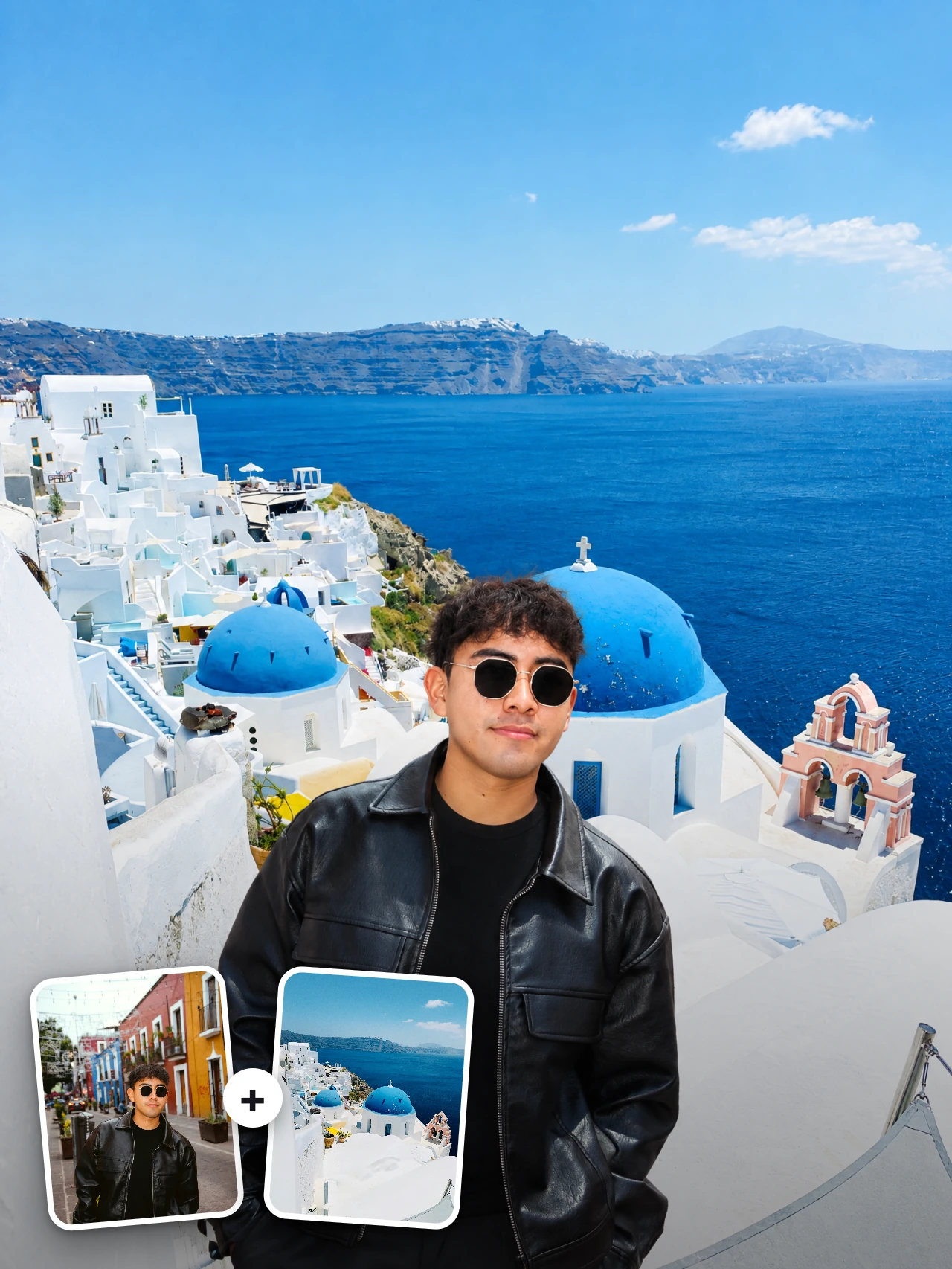
Change background
Keep your subject and place it in a new scene.
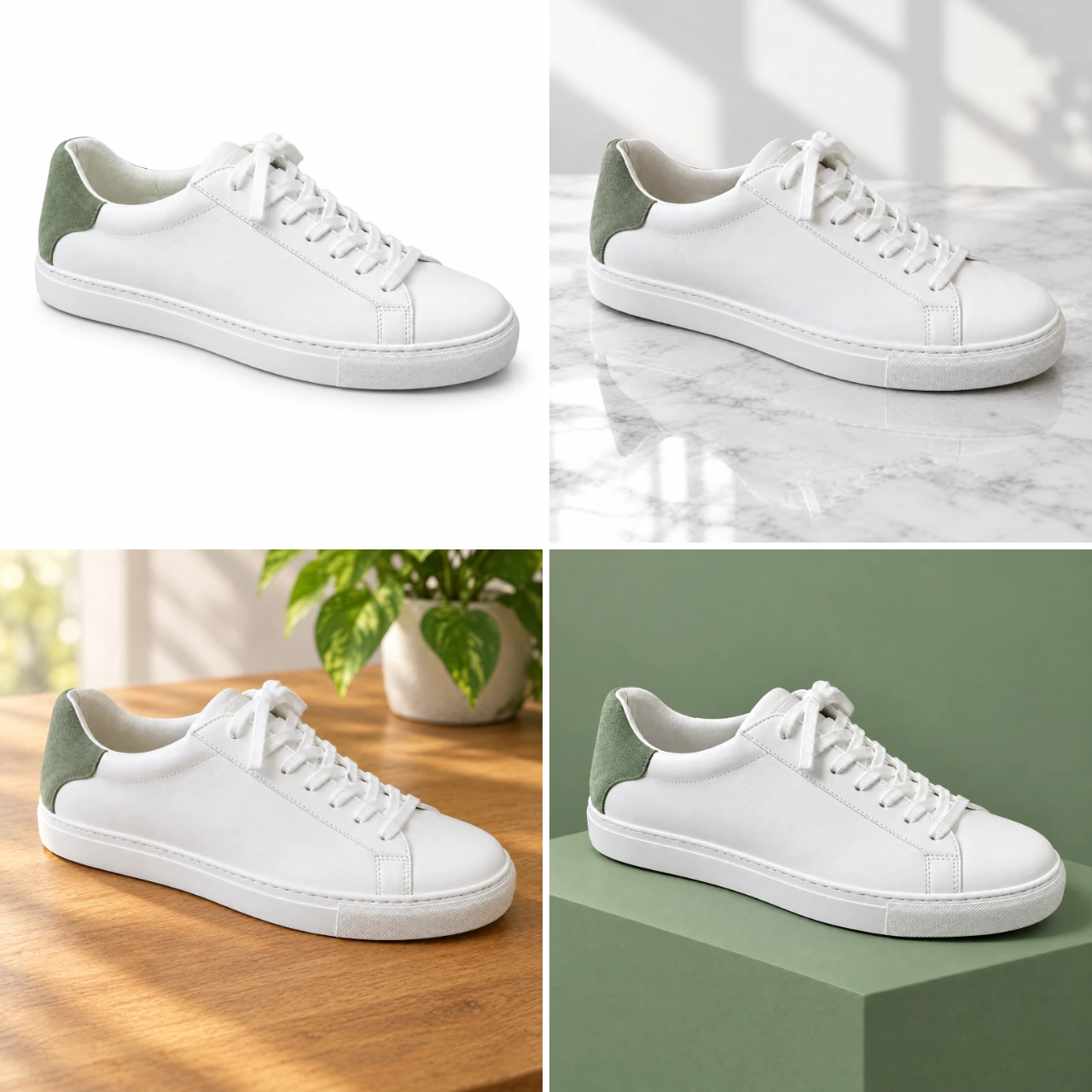
Studio product shot
Turn a phone snap into a clean studio photo.
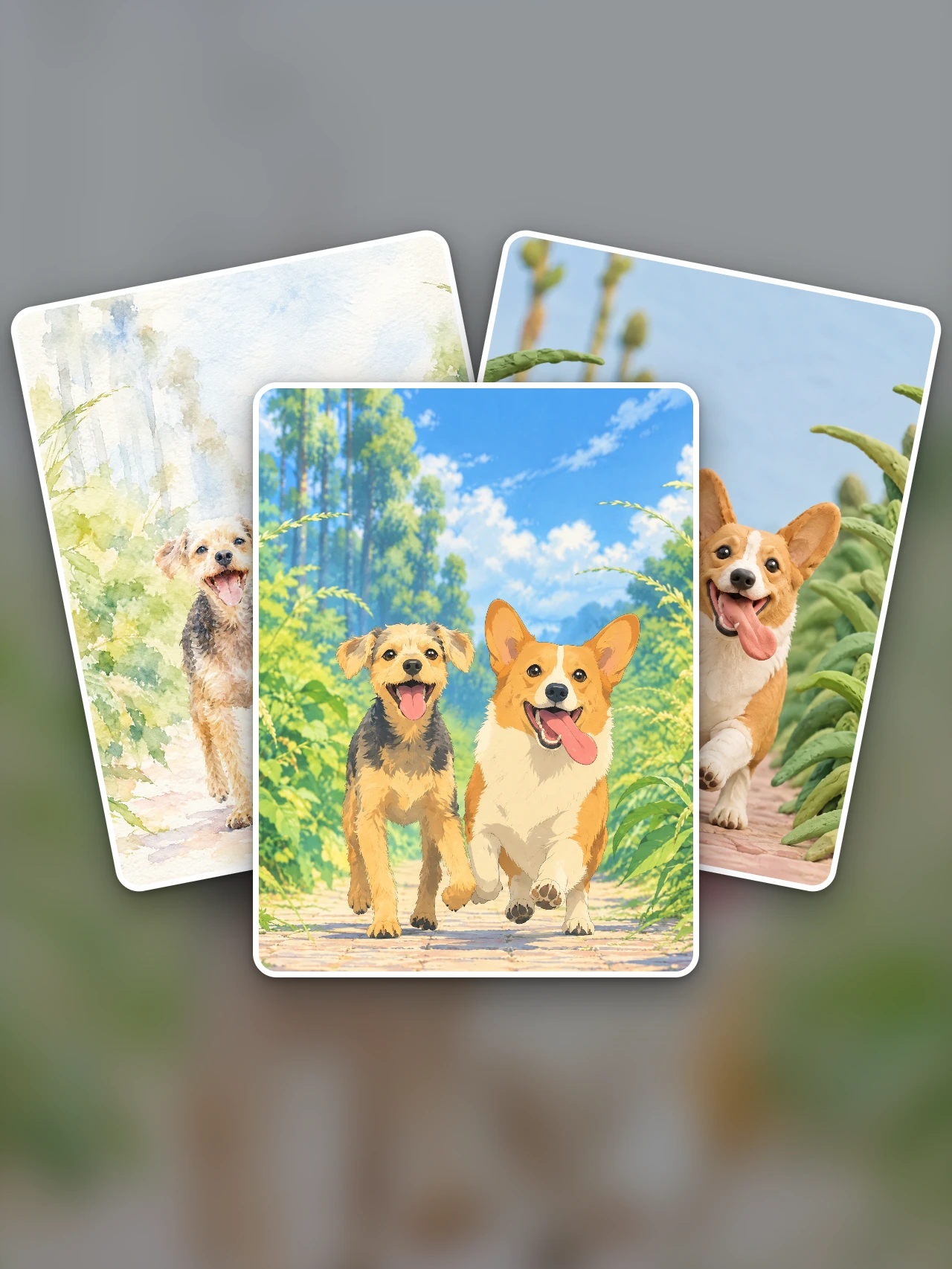
Art style
Repaint your photo as watercolor, oil, sketch and more.

Try it on before you buy it
Open Outfit try-on in GenLive Studio with two photos, or create on your iPhone with GenLive.