GenLive Studio template
Change a photo's background with AI
Keep the person or product exactly as they are and put them somewhere new. Add a photo of the scene you want, or just describe it, and GenLive Studio matches the light, color, shadows, and perspective so it reads as one real photo.
Runs in your browser. Free to try, no account needed.
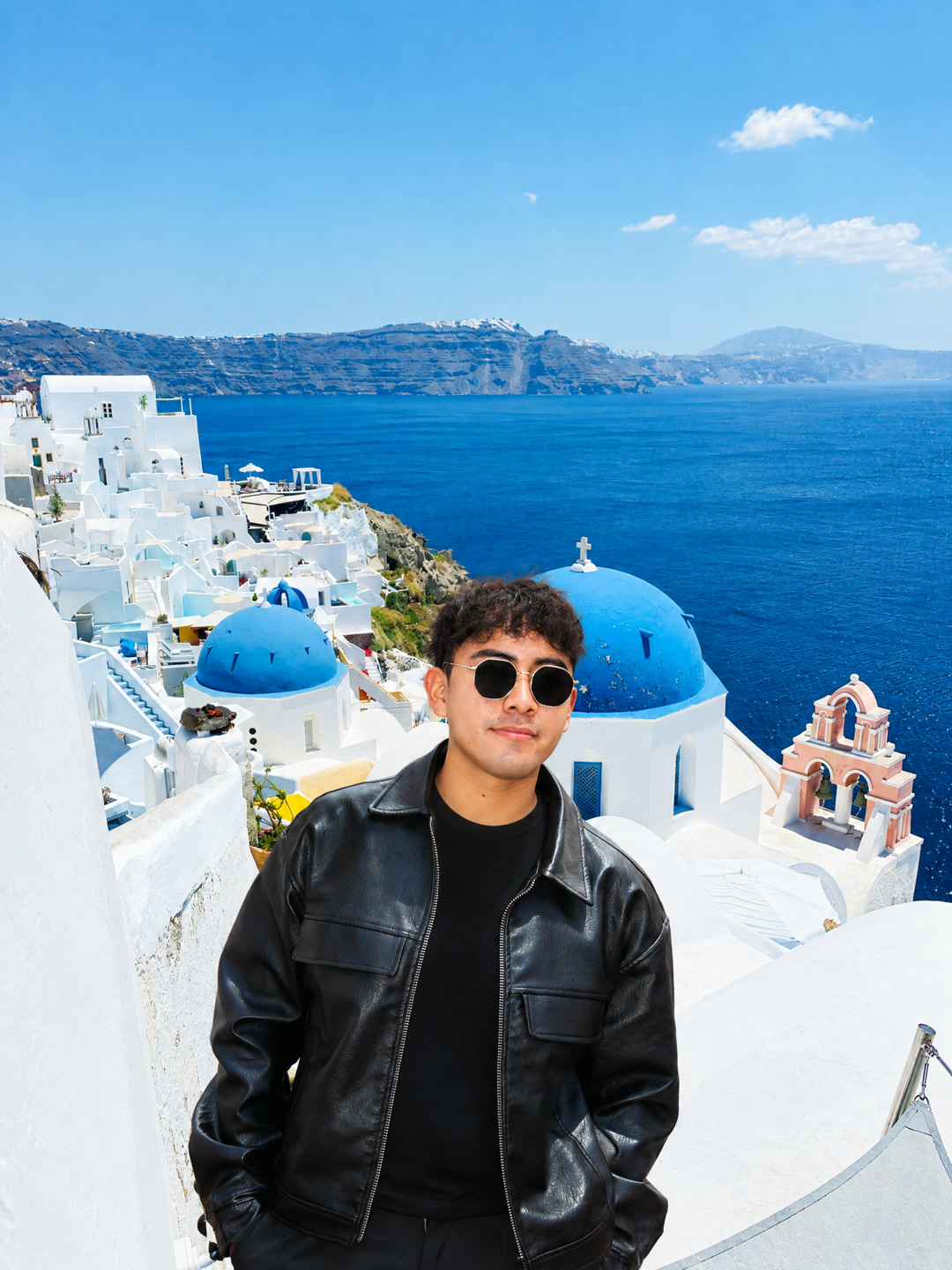
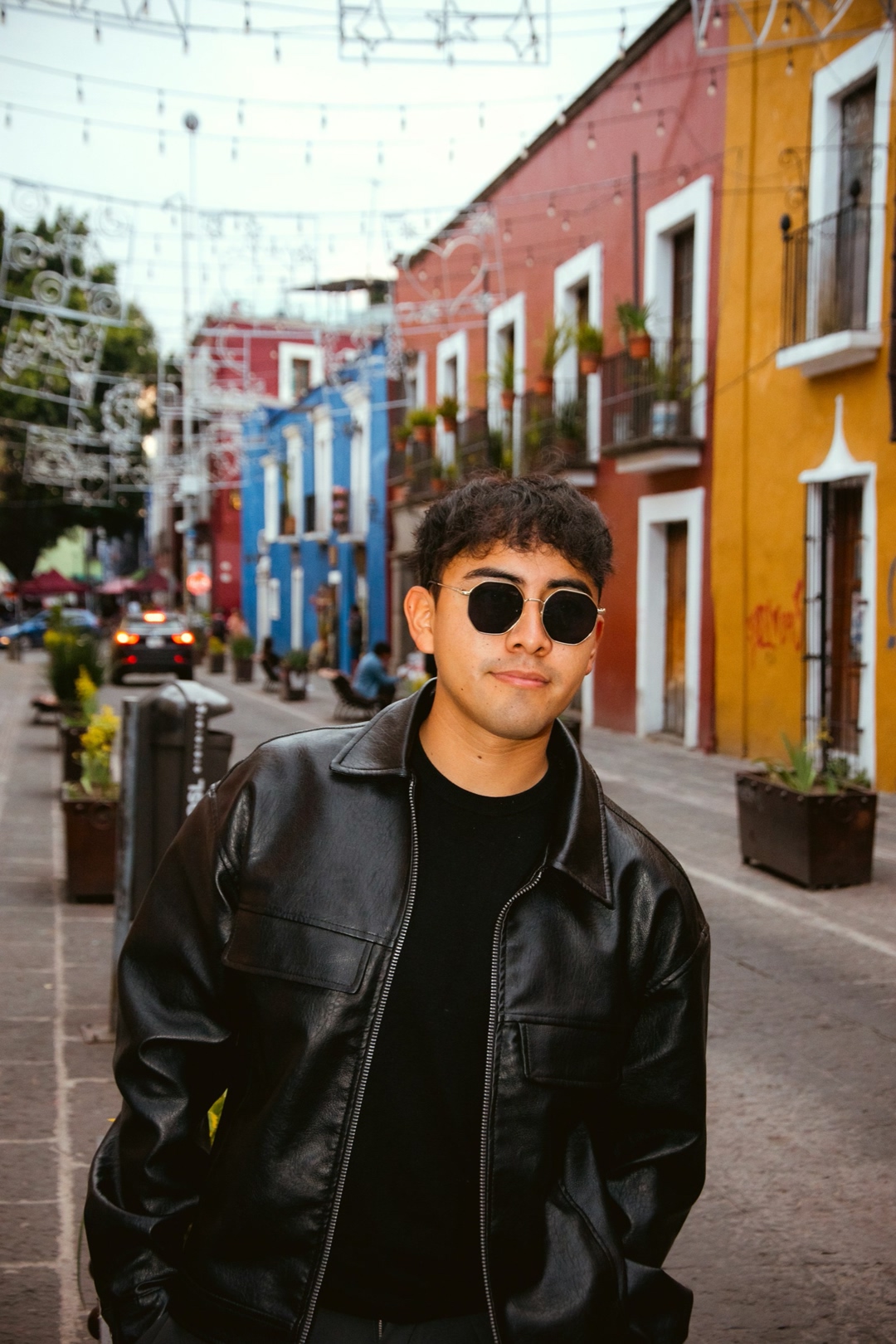
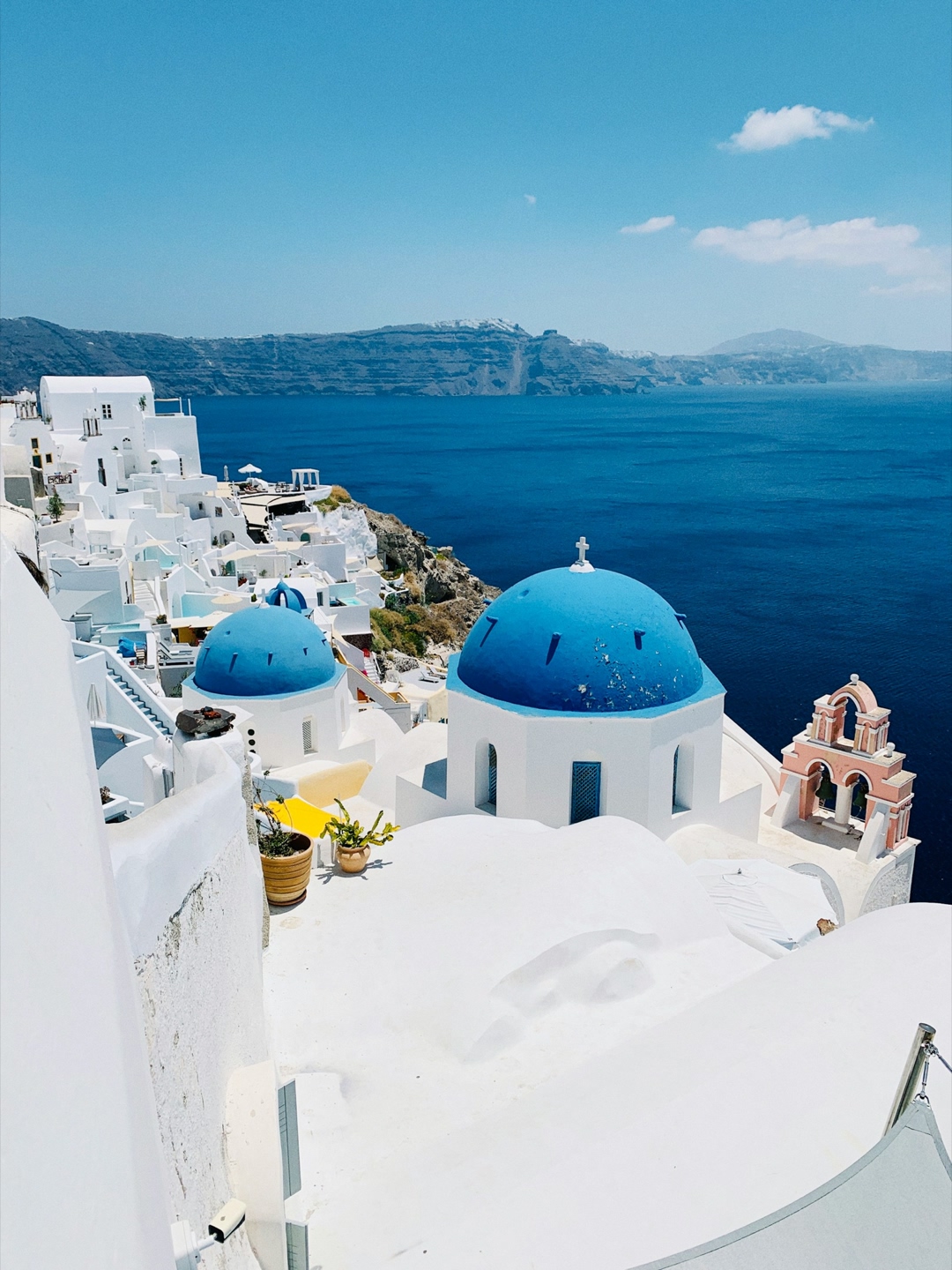
you add
A photo of the new scene, or a few words describing it.
about it
Change background works two ways. With two photos, Studio places the subject from the first into the scene from the second. With Describe, you type the new setting, like “a sunny beach at midday with soft dunes”. Either way the subject's face, clothing, and pose are kept, and the lighting is matched to the new place instead of looking cut out and pasted.
How to change a background
Add your subject
The person or thing you want to keep.
Add or describe the scene
Use a second photo, or switch to Describe.
Generate
Studio blends them into one believable photo.
Great for
Travel you didn't take
Put a portrait on a Greek island terrace.
Product listings
Swap a messy room for a clean lifestyle setting.
Profile and event photos
Replace a distracting backdrop with something calm.
Questions
More templates to try
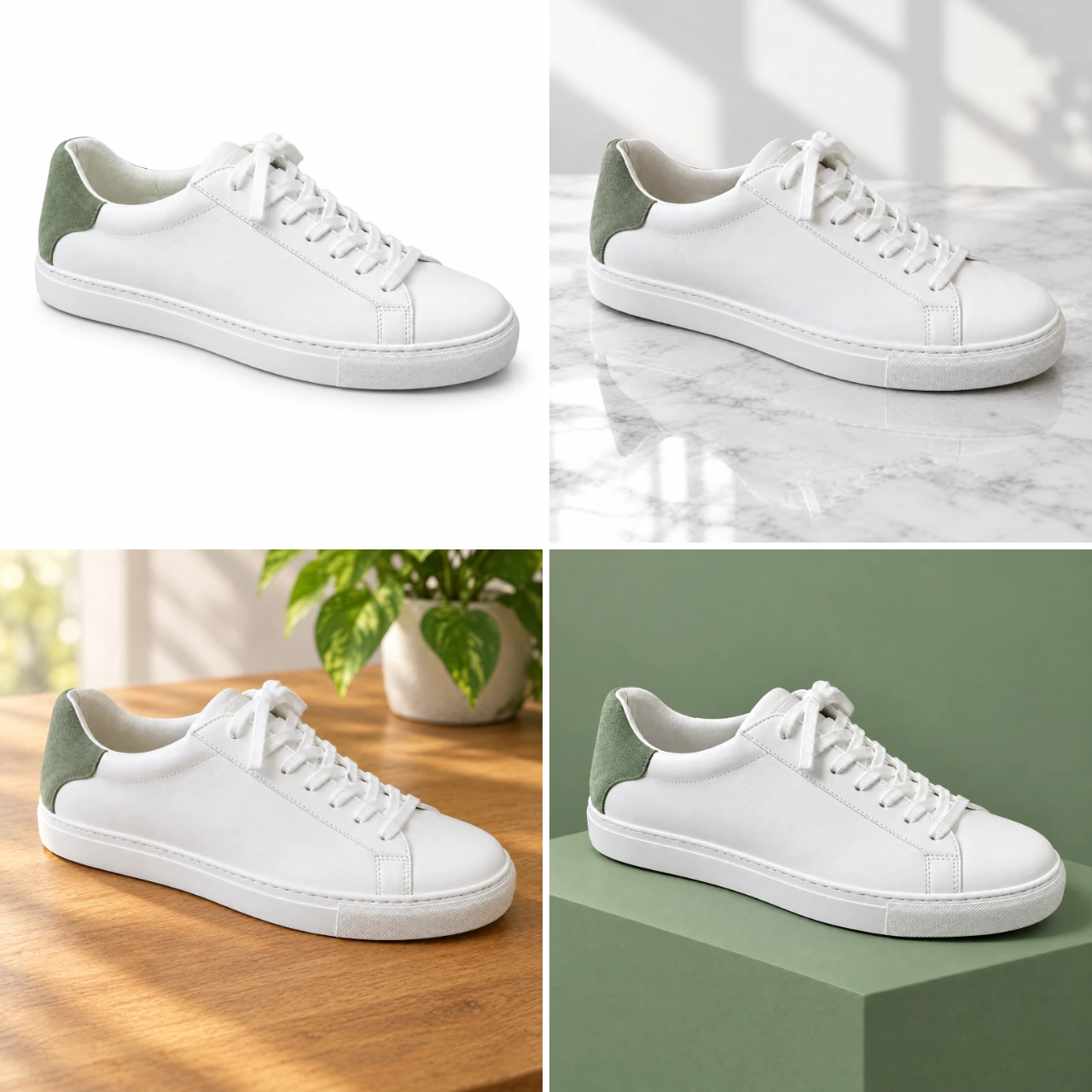
Studio product shot
Turn a phone snap into a clean studio photo.
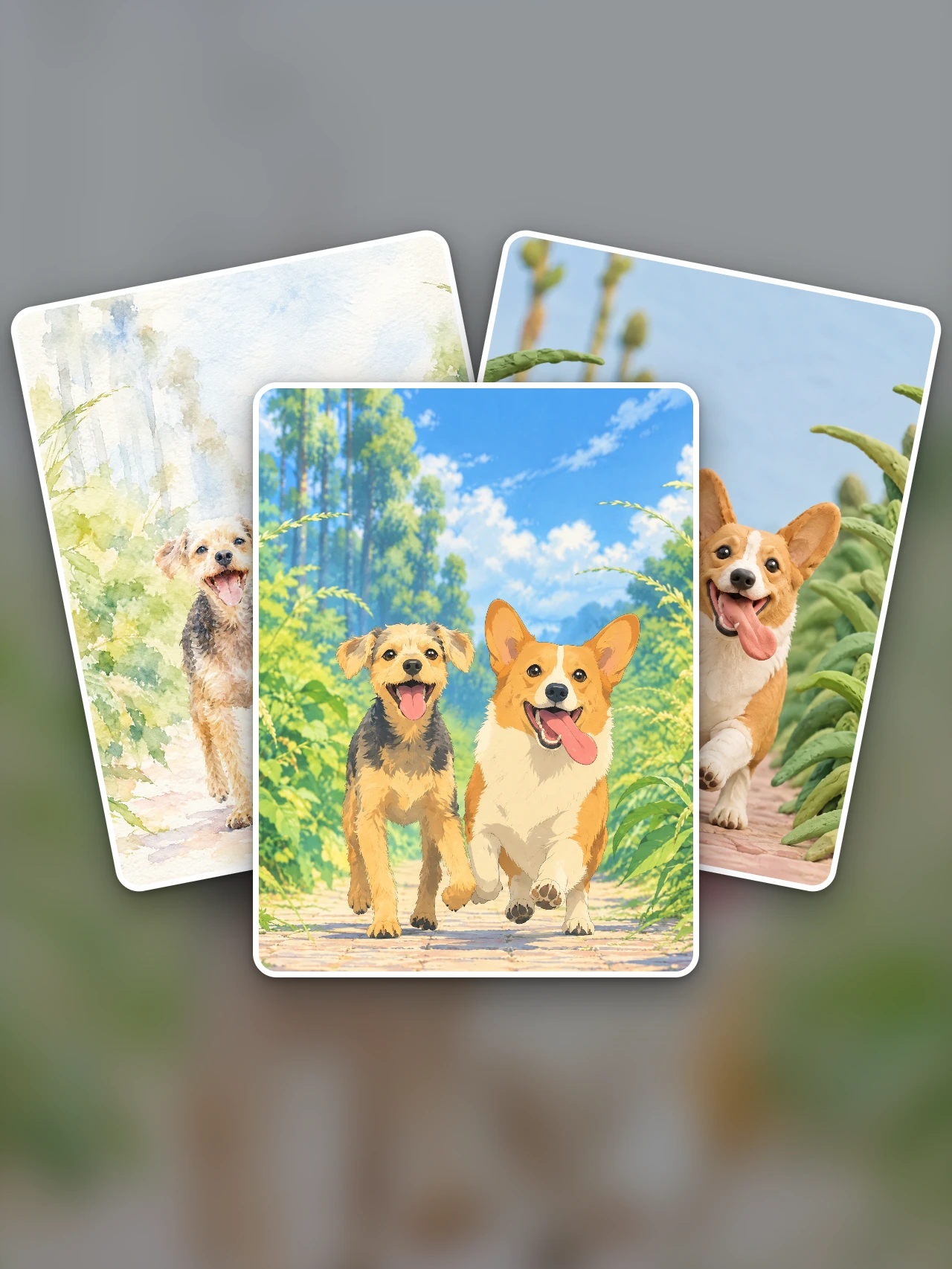
Art style
Repaint your photo as watercolor, oil, sketch and more.
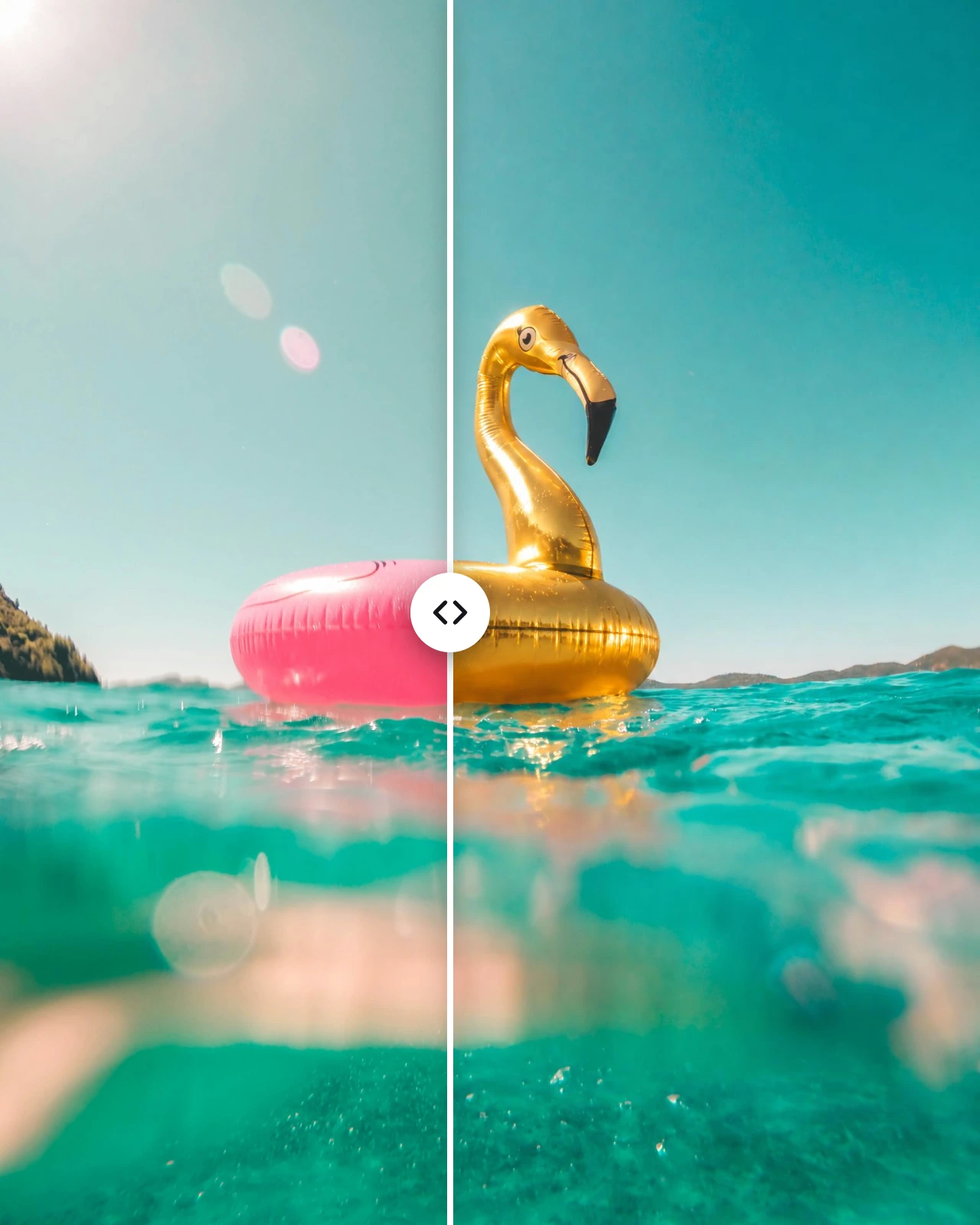
Photo edit
Describe a change and keep the rest of your photo.
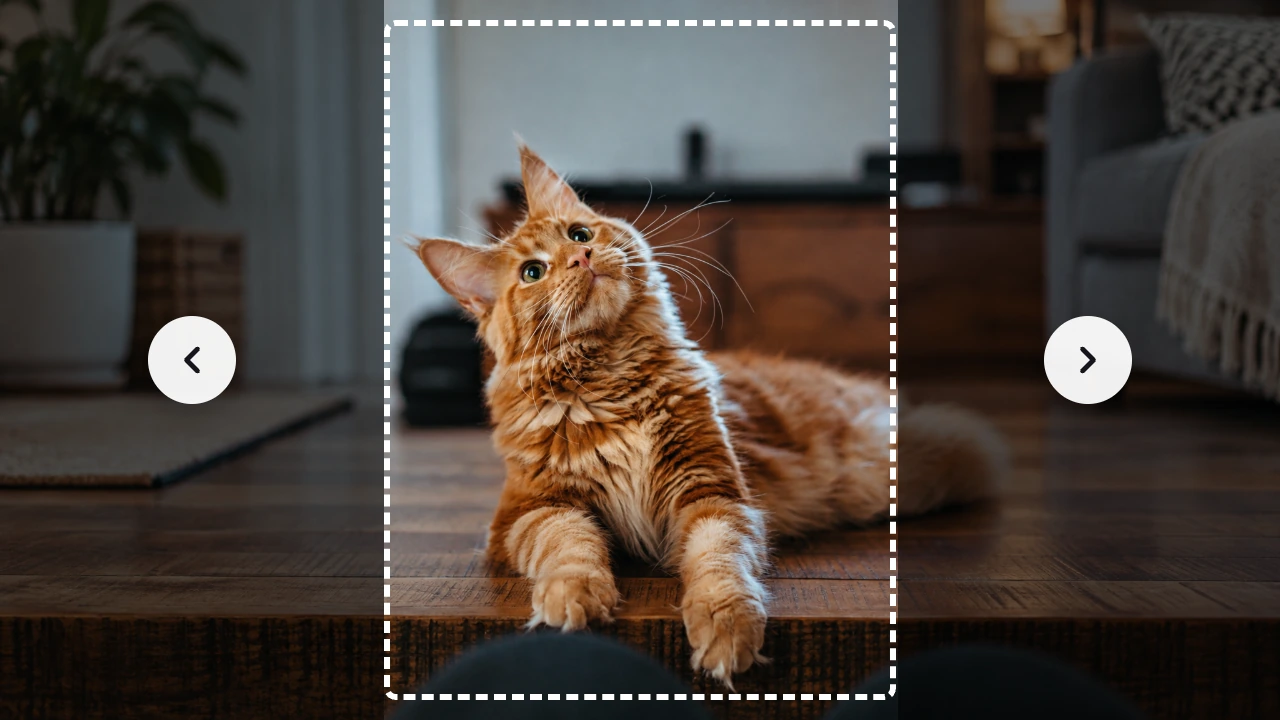
Resize
Change your photo's shape without cropping.
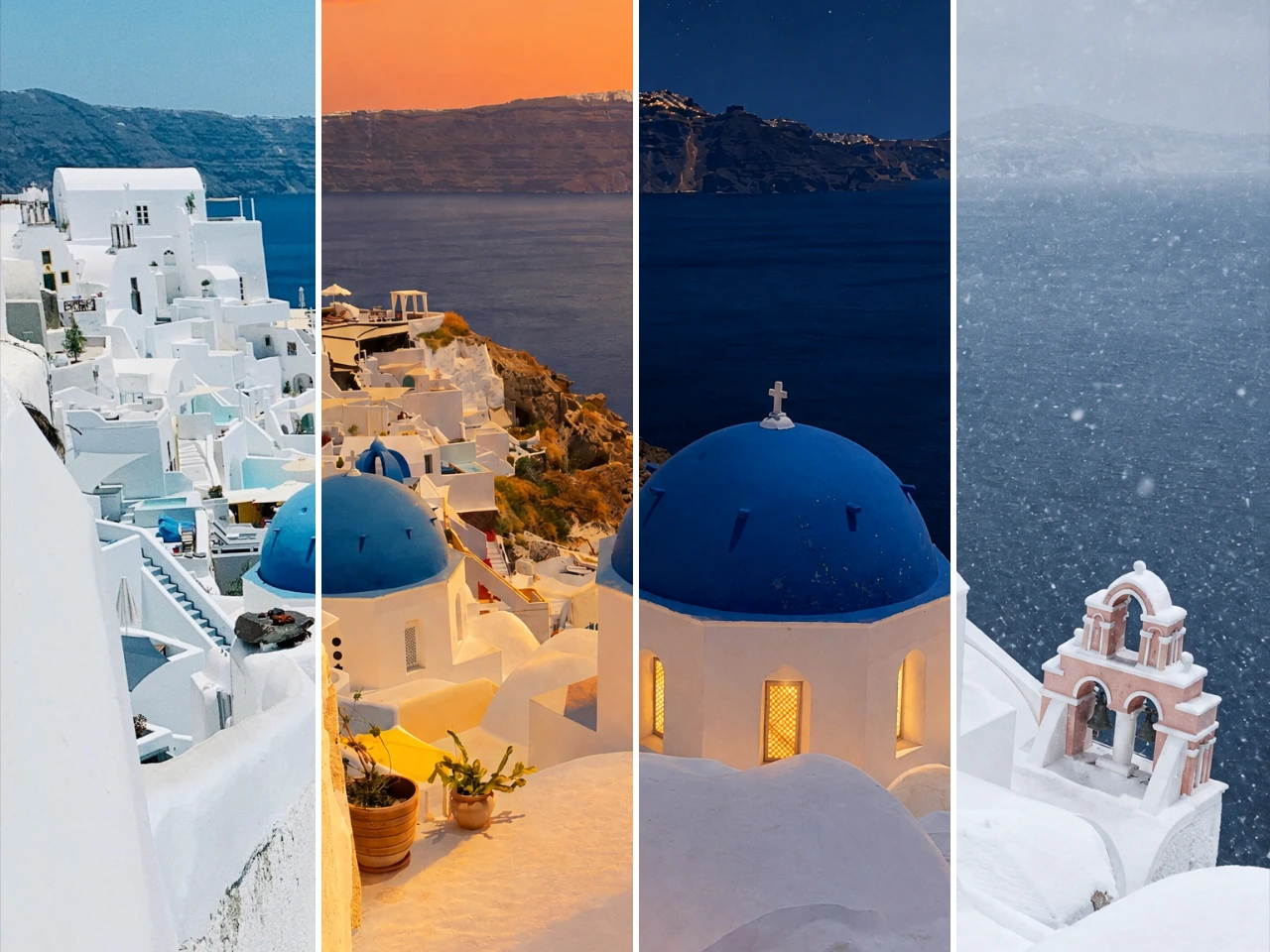
Time and weather
Relight a scene at golden hour, at night, or in snow.

Sticker
Turn your subject into a die-cut sticker.

Take your photo somewhere new
Open Change background in GenLive Studio, or edit on your iPhone with GenLive.